Blog
How to Scan a Picture to Find It Online: A Simple Reverse Image Search Guide


Finding a photo online is easier when you search with the image itself. If you want to know how to scan a picture to find it online, the basic process is simple. First, turn the printed photo into a clear digital image, then use a reverse image search tool to look for matches on the web.
This method can help you find the same photo, similar copies, larger versions, source pages, or pages that use the image. Google Lens, Bing Visual Search, and TinEye are three useful tools for this job. Each works in a slightly different way, so using more than one can improve your search.
You do not need advanced software to start. A phone camera, scanner, or saved image file can be enough. The quality of the image still matters because a clean picture gives the search tool more visual detail to compare.
Scanning a Picture and Finding It Online
When people ask how to scan a picture to find it online, they often mean two steps. The first step is making a digital copy of a printed photo. The second step is searching the internet with that digital image instead of typing words.
This type of search is called reverse image search or visual search. A search engine studies the picture and compares its visual features with images in its index. It may then show matching websites, related pictures, products, objects, or other useful results.
The process is useful for old photos, product images, artwork, screenshots, profile pictures, and images found in books or magazines. It can also help you trace where an image appeared online. However, no search service can guarantee that it has indexed every image on the internet.
How to Scan a Picture to Find It Online with a Phone
A phone is often the fastest tool for anyone learning how to scan a picture to find it online. Put the printed photo on a flat surface with good, even light. Hold the phone straight above it and take a sharp picture without glare or shadows.
Crop the phone photo so the printed image fills most of the frame. Remove the table, fingers, frame, or other objects around it. Keep the original colors when possible because strong filters can change useful visual details.
After you save the clean copy, open a visual search service and upload it. On Android and iPhone, Google Lens can take a new photo or use an image already stored on the device. Google also lets users select a smaller area when they want to search one object, logo, person, or detail.
How to Scan a Picture to Find It Online with Google Lens
For many users, Google Lens is the easiest answer to how to scan a picture to find it online. On a computer, Google lets you upload an image, drag an image into the search box, or paste an image link. Lens can then return websites that contain the image or a similar image.
On a phone, open the Google app or use a supported Chrome setup and choose the Lens icon. You can take a picture with the camera or choose one from your saved photos. After the image loads, adjust the selection box if you only want to search part of the picture.
Google says Lens results can include similar images, pages that contain the same or a related image, and search results for objects shown in the photo. You can also add words to refine the search. This can help when a photo contains several objects or when the first search is too broad.
Can Bing Visual Search Find the Same Picture Online?
Yes, Bing Visual Search is another practical option for finding a scanned picture on the web. Microsoft says the service can search the web with an image instead of text. Its results may include pages using the picture, related images, products, and other information.
On a desktop or laptop, open Bing Images and choose the camera icon. You can upload a file, drag a picture into the search box, paste an image or image URL, or use a webcam. On a mobile device, you can take a photo or upload one saved on the phone.
Bing uses image analysis and AI to understand photo content. Microsoft also notes that AI based results can make mistakes. For that reason, treat a visual match as a lead and check the page, date, caption, and surrounding details before deciding that two images have the same source.
How to Scan a Picture to Find It Online with TinEye
TinEye is useful when your goal is to find copies or edited versions of the same image. TinEye can add a second source of evidence after a Google or Bing search. It uses image recognition rather than the image file name or normal text keywords.
You can upload a picture, drag and drop it, paste the image, or enter an image URL. TinEye then compares the image with pictures in its own web index. Its tools can help locate resized, cropped, or modified versions of an image.
TinEye also lets users sort and compare results, which can help when looking for older appearances or larger copies. A missing match does not prove the picture has never appeared online. It only means TinEye did not find a match in the images available in its index.
Ways to Get Better Reverse Image Search Results
Better image quality can improve reverse image search results. Use the clearest copy you have, keep the image in focus, and avoid glare from glass or glossy paper. If you use a flatbed scanner, place the picture straight and save a clean copy before editing it.
Try more than one crop when the full image gives poor results. A close crop of a face, building, product, sign, logo, or unusual object may produce a better match. Google Lens supports selecting a smaller area, which makes this method easy on a phone.
You should also try more than one search engine. Google Lens may surface visually related pages, Bing Visual Search may return a different set of web results, and TinEye is useful for matching exact or altered copies. Different image indexes can produce different results for the same picture.
Checking a Match Before You Trust It
Learning how to scan a picture to find it online is only the first part of the task. When you find a possible match, open the page and read the text around the picture. Check the page title, author, publication date, caption, and any credit attached to the image.
Look for an earlier source instead of assuming the first result is the original. The same picture may appear on social media, news pages, blogs, stock sites, and copied posts. A later page may appear more clearly in search even when another site published the image first.
If the image matters for research, compare several sources. Check whether the photo was cropped, flipped, edited, or placed in a new context. A visual match can show that two image files are related, but the web page still gives you the context needed to understand the picture.
Is Reverse Image Search Safe and Private?
Privacy matters when you use visual search tools. Do not upload private, sensitive, or confidential photos unless you are comfortable with the service you choose. Review the service’s privacy information before uploading personal documents or other sensitive pictures.
TinEye says it does not save search images or add them to its image index. Microsoft states that photos supplied to Bing Visual Search may be used to improve Bing image processing services. These policies are worth checking before choosing a tool for a sensitive image.
You should also respect copyright when you find an image. Finding a picture online does not mean the picture is free to reuse. Check the source page, license, photographer credit, or rights information before copying or publishing it.
Common Mistakes When Searching a Scanned Picture
A common mistake is using a blurry phone photo. Poor focus, strong reflections, large borders, and dark shadows can hide useful visual details. Retake or rescan the picture before assuming that no online copy exists.
Another mistake is searching only once. If your first attempt at how to scan a picture to find it online gives weak results, crop the image and search again. Try the full picture, then search an important face, logo, object, or landmark within it.
People also confuse a similar image with an exact match. Two photos may show the same person or place but come from different moments. Compare small details such as clothing, pose, background objects, lighting, image edges, and edits before treating a result as the same picture.
Why Might a Picture Not Appear in Search Results?
A photo may not appear because the page is private, deleted, recently published, or outside the search engine’s current image index. This is an important limit to remember when using reverse image search. No public image search engine contains every image ever posted online.
The picture may also have changed too much. Heavy cropping, filters, added text, screenshots, low resolution, or strong compression can make matching harder. Searching a cleaner version or a smaller important region may help.
Sometimes normal text search can support the image search. If the picture contains a readable sign, logo, event name, product label, or location, search those words as well. Combining visual clues with text can give you more useful context.
FAQs
What Is the Easiest Way to Scan a Photo and Search for It?
The easiest method for how to scan a picture to find it online is to take a clear phone photo, crop it, and upload it to Google Lens. Lens can search the full photo or a selected region. If the result is weak, repeat the search with Bing or TinEye.
Can Google Find a Person from a Photo?
Google Lens can return visually related images and web pages connected to an uploaded picture. It may help locate pages where the same or a similar photo appears. Results depend on images available to Google’s search systems, so it cannot promise to identify every person in a photo.
Can I Reverse Search an Old Printed Photograph?
Yes. The process for how to scan a picture to find it online works with old printed photos too. Make a clear digital copy with a scanner or phone, crop away unwanted borders, and search the file with Google Lens, Bing Visual Search, and TinEye.
Is TinEye Better Than Google Lens?
They serve different search needs. TinEye focuses on matching the same image and altered copies, while Google Lens can also search objects and return related visual results. For a detailed search, using both services gives you different methods and image indexes.
Why Does Reverse Image Search Show No Results?
No results can mean the picture is not in that search engine’s index or the image has changed too much. When how to scan a picture to find it online does not work on the first try, use a sharper copy, change the crop, search a key region, and try another visual search engine.
Final Thoughts
Knowing how to scan a picture to find it online gives you a simple way to trace images without relying only on names or keywords. Start with a clear digital copy, then search it with Google Lens, Bing Visual Search, or TinEye. Compare several results instead of trusting the first page you see.
The strongest searches use both the full picture and selected details. A face, logo, object, sign, building, or background feature can lead to a better result. Clean scans and careful crops can make a large difference.
Reverse image search is useful, but it has limits. Image indexes are not complete, and visual tools can return unrelated matches. Verify the source page and image details before you use a result as proof.

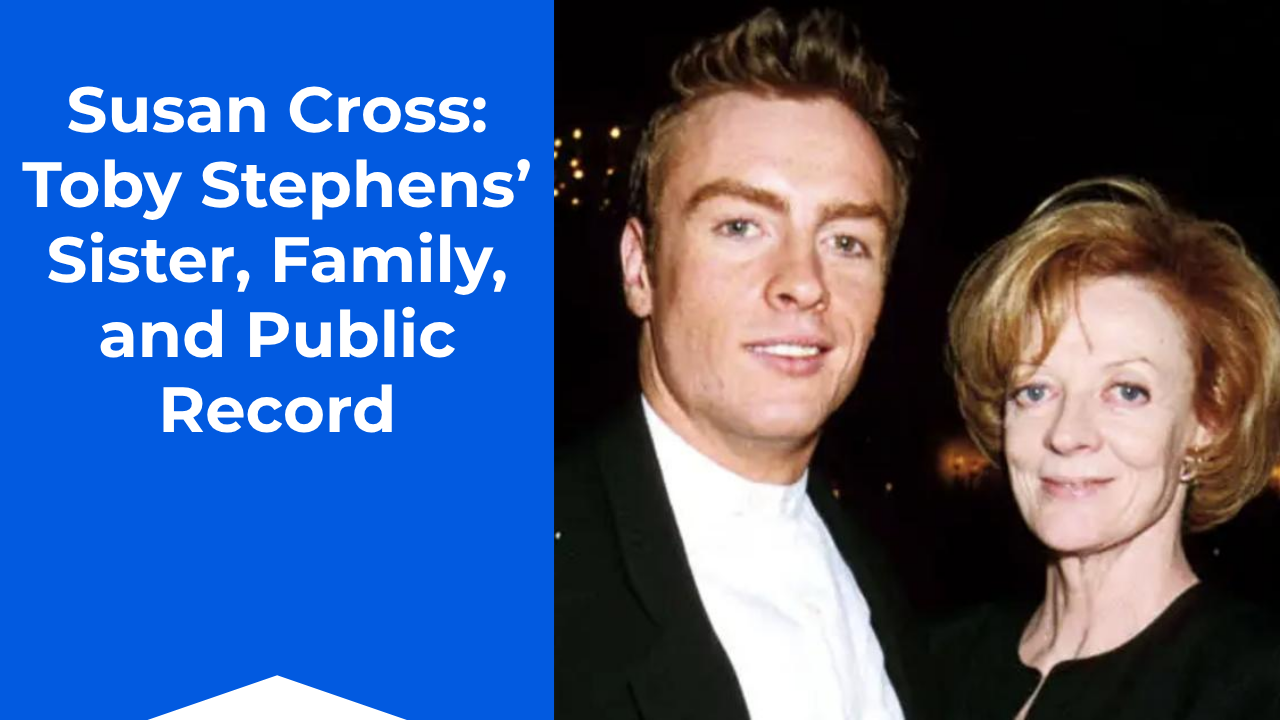
Toby Stephens comes from one of Britain’s best-known acting families, but that fame has also made his family tree surprisingly easy to get wrong.
Online biographies sometimes attach additional relatives to the Black Sails actor, including a woman named Susan Cross. Yet reliable accounts of Toby’s family do not identify Susan Cross as his sister.
The documented story is more interesting anyway.
Toby is the younger son of Dame Maggie Smith and actor Sir Robert Stephens. His full brother is actor Chris Larkin. Through his father’s earlier marriages, Toby also has an older half-brother, Michael Stephens, and an older half-sister, Lucy Dillon, who was born Lucy Stephens.
That larger family grew out of Robert Stephens’ complicated personal life, while Toby and Chris were largely raised by Maggie Smith and her second husband, playwright Beverley Cross.
The Cross surname may be one reason inaccurate family connections have appeared online.
Susan Cross Is Not Listed Among Toby Stephens’ Siblings
The clearest place to begin is with Toby’s parents.
Toby Stephens was born on April 21, 1969, to Maggie Smith and Robert Stephens. He was their second son.
Their first son, Christopher Stephens, was born in 1967. He later became an actor under the professional name Chris Larkin.
Major profiles of Maggie Smith consistently identify Chris and Toby as her two children.
When Smith died on September 27, 2024, her sons announced her death together. Later coverage again described her as the mother of two sons, Chris Larkin and Toby Stephens.
There is no Susan Cross in that branch of the family.
Robert Stephens, however, had children from earlier marriages.
That is where Toby’s half-siblings enter the story.
Toby Does Have an Older Half-Sister
Before Robert Stephens married Maggie Smith, he had already been married twice.
His first marriage was to Nora Ann Simmonds in 1951. They had a son, Michael Stephens, before divorcing the following year.
Robert later married Tarn Bassett in 1956.
That marriage produced a daughter named Lucy Stephens, who later became known as Lucy Dillon. Robert and Tarn divorced in 1967.
The same year, Robert married Maggie Smith.
Chris and Toby followed.
That makes Lucy Dillon Toby Stephens’ paternal half-sister, not Susan Cross.
Lucy has remained far less publicly visible than Toby, Chris, or their famous parents, which may explain why she is often missing from shorter celebrity biographies.
Robert Stephens Created a Complicated Family Tree
Toby’s family history cannot be understood without looking at Robert Stephens.
The acclaimed Shakespearean actor married four times.
His first marriage produced Michael. His second produced Lucy. His marriage to Maggie Smith produced Chris and Toby. Near the end of his life, he married actress Patricia Quinn.
Those relationships meant Toby grew up as part of a wider group of paternal siblings, even though the household most associated with his childhood centered on Maggie, Chris, and later Beverley Cross.
Robert’s relationship with Maggie did not last.
The couple separated while Toby was still very young and divorced in the mid-1970s. Toby later recalled that Robert left the family when he was around four.
That changed the meaning of “father” inside Toby’s childhood.
Toby Called Beverley Cross “Dad”
This is where the Cross surname becomes important.
After her marriage to Robert Stephens ended, Maggie Smith married playwright and screenwriter Beverley Cross in 1975.
Beverley did not become Toby’s biological father.
He became something more important in day-to-day life: the man who helped raise him.
In a profile discussing Toby’s family history, The Standard noted that Toby and Chris referred to their biological father as “Robert”, while they called Beverley Cross “Dad.”
That small choice of words says more than a formal family tree.
Robert Stephens gave Toby his surname and his biological connection to another great British acting career.
Beverley Cross helped raise him.
Who Was Beverley Cross?
Beverley Cross was already established in British theater and film before he married Maggie Smith.
He worked as a playwright, librettist, and screenwriter. His credits included work connected with Half a Sixpence, Jason and the Argonauts, The Long Ships, Genghis Khan, and the 1981 fantasy film Clash of the Titans.
His relationship with Maggie went back many years before their marriage.
They had known each other from her early acting years, but both followed different personal paths before eventually marrying in 1975.
For Toby and Chris, Beverley became a steady parental figure.
He remained married to Maggie until his death in 1998.
That made “Cross” a major name in Toby’s immediate family story even though Toby himself was not born into the Cross family.
Could Susan Cross Be Related Through Beverley Cross?
This is where caution matters.
A person named Susan Cross may exist within a wider Cross family, but reliable biographies of Toby Stephens, Maggie Smith, Robert Stephens, and Beverley Cross do not establish a Susan Cross as Toby’s sister.
Beverley Cross is consistently described as Toby and Chris’ stepfather, not as the father of a documented sister named Susan who became part of their sibling group.
Without a reliable family record, interview, obituary, or other strong source connecting a Susan Cross to Toby as a sister, presenting that claim as fact would create a family relationship that the evidence does not support.
The documented female sibling is Lucy Dillon.
Who Is Lucy Dillon?
Lucy Dillon, born Lucy Stephens, is the daughter of Robert Stephens and his second wife, Tarn Bassett.
She is therefore Toby and Chris’ older paternal half-sister.
Unlike her father and half-brothers, Lucy did not build a highly visible acting career.
That difference has kept her largely outside the entertainment coverage surrounding the Stephens family.
Toby and Chris inherited both their parents’ profession.
Lucy chose a more private path.
As a result, many readers familiar with Maggie Smith’s sons may not realize Robert Stephens had children before marrying her.
Michael Stephens Is Toby’s Other Older Half-Sibling
Robert’s oldest documented child is Michael Stephens.
He was born from Robert’s brief first marriage to Nora Ann Simmonds.
That marriage began in 1951 and ended in 1952.
Michael, like Lucy, remained much less visible than Chris and Toby.
The four children therefore came from three different chapters of Robert’s life:
Michael from Nora Simmonds, Lucy from Tarn Bassett, and Chris and Toby from Maggie Smith.
The family connection is biological, but their childhood experiences were not necessarily the same.
Toby and Chris Shared the Closest Public Family Story
While Robert’s earlier children remained private, Toby Stephens and Chris Larkin repeatedly appeared together in accounts of Maggie Smith’s life.
They were only about two years apart.
Both became actors.
Both trained at the London Academy of Music and Dramatic Art.
Yet Chris deliberately changed the name he used professionally.
Born Christopher Stephens, he adopted Chris Larkin, reportedly in part because he wanted to avoid trading on the fame of his parents. He chose Larkin after poet Philip Larkin.
Toby kept Stephens.
Both still had to deal with the same question: how do you build your own acting career when your parents are Maggie Smith and Robert Stephens?
Maggie Smith Tried to Give Her Sons a Life Beyond Her Fame
Toby’s childhood was unusual even by acting-family standards.
His parents were major performers, and Maggie’s career repeatedly took the family between Britain and North America.
After her separation from Robert, Toby and Chris often traveled with her while she worked.
Beverley Cross provided another connection to theater and film.
In other words, Toby did not simply decide to enter acting after growing up around ordinary professions.
Theater was embedded in the family.
His mother acted.
His biological father acted.
His stepfather wrote plays and films.
His older brother became an actor.
Still, Toby has spoken about the complications of growing up inside that legacy rather than presenting it as an automatic advantage.
Robert Stephens Was More Distant From Toby’s Childhood
One of the most revealing details about Toby’s family is the way he spoke about Robert.
He admired his father’s work.
As a teenager, Toby saw Robert performing at the National Theatre and remembered those experiences.
But Robert had left the family years earlier.
The distinction between “Robert” and “Dad” remained.
Beverley Cross had filled the everyday parental role.
This is why family labels around Toby Stephens need more care than they first appear to require.
A stepfather could be “Dad.”
A biological father could be “Robert.”
Half-siblings existed outside the better-known Maggie Smith household.
A surname alone does not tell the full story.
Maggie Smith Had Only Two Children
Another way to test the Susan Cross claim is through Maggie Smith’s documented family.
Smith had five grandchildren, but only two children.
Those children were Chris and Toby.
She did not have a daughter named Susan.
She also did not have a daughter with Beverley Cross.
Her marriage to Beverley lasted from 1975 until his death in March 1998, but they had no children together documented in major biographical records.
So Susan Cross cannot accurately be described as Toby’s maternal sister based on Maggie’s family.
Why Do Celebrity Family Trees Get Names Wrong?
Private relatives create an obvious problem for online biographies.
One famous person may have thousands of pages written about them while a sibling has almost no public profile.
Information then gets copied from one website to another.
A step-relative may become a half-relative.
A surname can be attached to the wrong generation.
Eventually, a claim can appear on enough websites that it begins to look established even though those sites may all be repeating the same original mistake.
The Stephens family is especially vulnerable to that confusion because of multiple marriages, stage names, half-siblings, and step-relatives.
Chris Stephens became Chris Larkin.
Lucy Stephens became known as Lucy Dillon.
Maggie Smith remarried Beverley Cross.
Toby called Beverley “Dad” even though Robert Stephens was his biological father.
Without careful sourcing, those details are easy to mix together.
What Is the Correct Stephens Family Picture?
The simplest verified version begins with Maggie Smith and Robert Stephens.
They had two sons:
Chris Larkin, born Christopher Stephens, and Toby Stephens.
Robert had two older children from previous marriages:
Michael Stephens and Lucy Dillon, née Stephens.
After Maggie and Robert divorced, Maggie married Beverley Cross, who became stepfather to Chris and Toby and helped raise them.
That is the family structure supported by established biographical sources.
Susan Cross does not appear as Toby Stephens’ sister in that documented family tree.
Why the Correction Matters
The issue may seem small.
It is not.
Writing about a private relative already means working with fewer facts than are available for a celebrity. Once the basic relationship is wrong, everything built on top of it becomes unreliable.
Birth details, childhood stories, occupations, marriages, and claims about sibling relationships can then turn into invented biography.
Toby’s real family history does not need those inventions.
It already contains an interesting story about fame, fractured households, half-siblings, two father figures, and several people finding very different ways to live beside an enormous theatrical legacy.
The quieter person in that story is not Susan Cross.
It is Toby’s documented half-sister, Lucy Dillon.
Final Thoughts
There is no reliable basis for describing Susan Cross as Toby Stephens’ sister.
Toby’s documented full brother is Chris Larkin. Through their father, Sir Robert Stephens, he also has an older half-brother, Michael Stephens, and an older half-sister, Lucy Dillon.
The Cross name entered Toby’s life through Beverley Cross, Maggie Smith’s second husband and the man Toby regarded as his father while growing up.
That may help explain how a mistaken Susan Cross connection could arise.
But the verified family story is clear.
Toby did have a sister through his father.
Her name was Lucy, not Susan.
Is Susan Cross Toby Stephens’ sister?
No reliable biographical source identifies Susan Cross as Toby Stephens’ sister; his documented paternal half-sister is Lucy Dillon, born Lucy Stephens.
Does Toby Stephens have a sister?
Yes. Toby has an older paternal half-sister, Lucy Dillon, from Robert Stephens’ marriage to Tarn Bassett.
Who are Toby Stephens’ siblings?
His documented siblings are Chris Larkin, Michael Stephens, and Lucy Dillon. Chris is his full brother, while Michael and Lucy are paternal half-siblings.
Is Beverley Cross Toby Stephens’ biological father?
No. Beverley Cross was Toby’s stepfather, although Toby and Chris regarded him as “Dad” after he helped raise them.
Who are Toby Stephens’ parents?
Toby Stephens is the son of actors Dame Maggie Smith and Sir Robert Stephens.
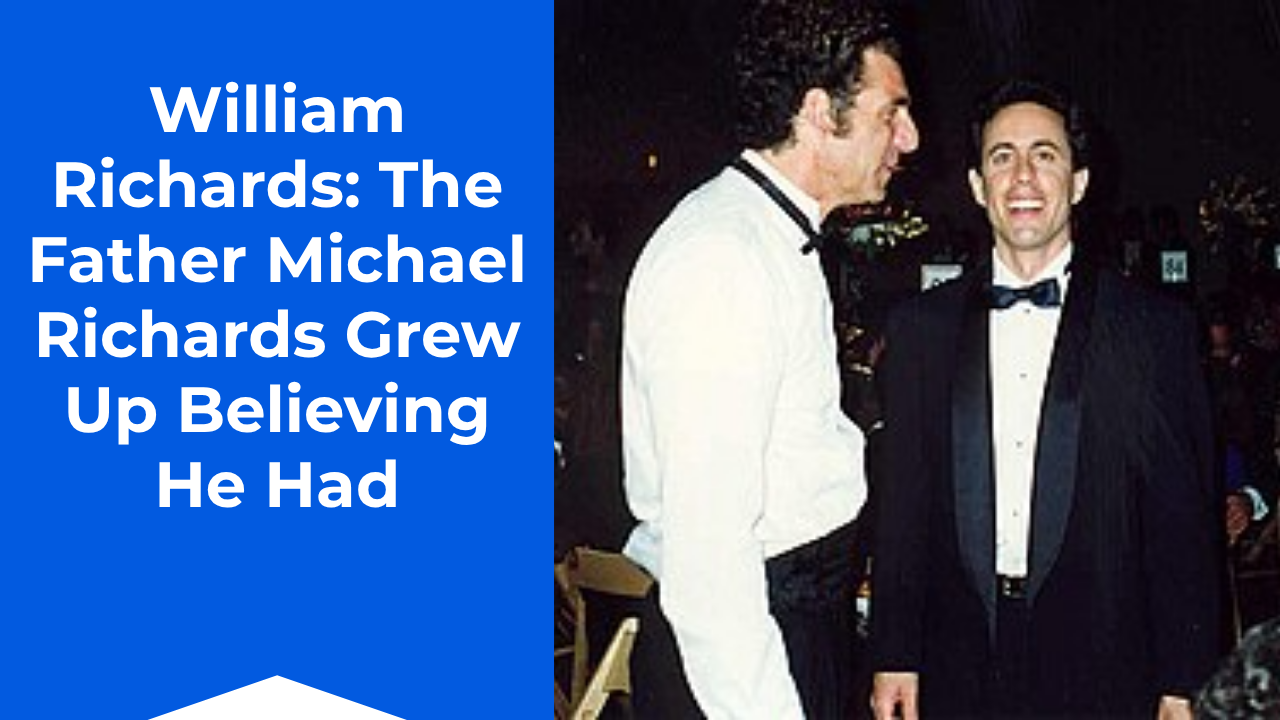
For much of Michael Richards’ life, the story of his father seemed simple enough. His name was William Richards, he was said to be an electrical engineer, and he had died while Michael was still very young.
There was only one problem: the story was not true.
In his 2024 memoir Entrances and Exits, the Seinfeld star revealed that he spent years trying to understand an absent father whose story kept changing. His mother, Phyllis Nardozzi, first told him his father had died in World War II. When Michael became old enough to realize that could not be true—he was born in 1949—the explanation changed to a fatal car accident. Eventually, he learned something much more painful. His mother had become pregnant after a sexual assault, and she did not know the identity of Michael’s biological father.
That revelation changes the way William Richards should be understood. He was not Michael Richards’ confirmed biological father. He was the father Michael had been told about, a figure who filled an empty space in his childhood until the truth finally came out.
Michael Grew Up With a Father He Could Only Imagine
Michael Richards was born on July 24, 1949, in Culver City, California.
His mother raised him without a husband in the home. In a 2024 conversation with Rick Rubin, Michael described those early years simply: “my father wasn’t around.” His mother worked full time, while his grandmother helped care for him during his first years.
That absence left room for questions.
Michael had a name for his father. He had stories about what happened to him. But he did not have the man himself.
Older biographies would later repeat those stories as fact. They identified William Richards as an electrical engineer and said he died in a car accident when Michael was two.
Michael’s memoir eventually showed how much more complicated the truth was.
His Mother First Said William Richards Died in the War
The earliest explanation Michael remembered was that his father had died in World War II.
As a young child, that was enough of an answer.
But children grow up, and dates begin to matter.
World War II ended in 1945. Michael was born four years later.
Once he understood that, the story no longer worked.
According to accounts of Entrances and Exits, Michael confronted his mother about the impossible timeline. The questions did not immediately produce the truth. Instead, another version of his father’s death appeared.
William had not died in the war after all.
Now, Michael was told, he had died in a car accident.
Then the Story Changed to a Car Accident
The second story became the version that followed Michael for years.
His father, supposedly William Richards, had been killed in an automobile accident in Arizona.
That explanation was believable enough to survive.
It also became the story repeated in public biographies of Michael after he became famous. Some still describe William as an electrical engineer who died when Michael was two.
But Michael continued to wonder.
An absent parent can become larger in imagination than a parent who is actually present. With no father to remember, Michael had only pieces of information supplied by other people.
The more he questioned those pieces, the less secure the story became.
Michael’s Childhood Was Already Filled With Uncertainty
The mystery surrounding his father was only one difficult part of Michael’s early home life.
His mother worked as a medical records librarian. For several years, Michael was cared for heavily by his maternal grandmother, who lived with schizophrenia.
In his conversation with Rick Rubin, he remembered following his grandmother when she wandered away from home. He was still a small child, yet he understood how to find his way back even when she could not.
Eventually, her condition became serious enough that she had to be institutionalized.
Michael later looked back on that unusual childhood without reducing it to neglect. He remembered being held, fed, clothed, and loved.
Still, stability was not something he could always assume.
A missing father became another unanswered part of that world.
Phyllis Nardozzi Raised Michael as a Single Mother
Whatever she withheld about Michael’s conception, Phyllis Nardozzi was the parent who stayed.
Michael described her in a 1993 Los Angeles Times profile as naturally funny. He remembered her collecting hats, dressing up for Halloween, and bringing an unusual energy into the home.
He also remembered that she had practical hopes for him.
Because she worked around doctors at a hospital, Phyllis wanted Michael to consider medicine. He worked as an orderly and ambulance attendant when he was young.
Comedy and acting eventually pulled him elsewhere.
Even there, however, childhood remained close.
Michael has said that imagination became an important way of handling confusion and anxiety. That imagination would later become one of his greatest professional tools, especially when creating the unpredictable physical behavior of Cosmo Kramer.
Michael Eventually Learned His Father Had Not Died
By adulthood, Michael was no longer satisfied with the stories he had been given.
In the late 1980s, he continued pressing his mother about his father.
Eventually, Phyllis admitted something new.
The man had not died.
Michael responded by doing what someone searching for a missing parent might naturally do: he tried to find him.
According to Entertainment Weekly, Michael hired a private investigator and located a man whose name appeared on his birth certificate.
For a moment, it looked as though the mystery might finally have an answer.
It did not.
The Man on the Birth Certificate Was Not His Father
Michael met the trail that had been created for him.
But the man connected to the name on his birth certificate was not his biological father.
That discovery forced the questions back toward his mother.
The stories had now moved through several versions: a wartime death, a car accident, a father who was actually alive, and finally a man who turned out not to be Michael’s father at all.
The mystery could no longer be solved by finding “William Richards.”
Michael needed to know why the story existed in the first place.
That answer was far harder than anything he had expected.
His Mother Finally Told Him the Truth About His Conception
Phyllis eventually told Michael that she had been sexually assaulted by a stranger in 1948.
Michael was conceived as a result.
According to Michael’s account, his mother did not know the man well enough to give her son the father he had spent years imagining and searching for.
Phyllis had also considered what to do about the pregnancy.
Michael later said that adoption and abortion were considered before she ultimately decided to raise him. Abortion was illegal at the time.
For Michael, learning the truth was not simply a correction to a family record.
It changed the way he understood the beginning of his own life.
Was William Richards Really Michael Richards’ Father?
Based on Michael Richards’ own later account, no confirmed biological father named William Richards has been established.
This is important because older biographies often state the relationship as fact.
They describe William Richards as Michael’s father, identify him as an electrical engineer, and repeat the story that he died in a car crash.
Those biographies reflect the family story that circulated for years.
Michael’s 2024 memoir provides a later and firsthand account.
He says that the father stories were invented because his mother had become pregnant through sexual assault.
That makes William less a documented parent than part of the explanation Michael was given for why no father was present.
Even the Richards Name Had a Complicated History
Michael’s surname also became part of the mystery.
A review of Entrances and Exits in The Spectator reports that Michael wrote that Richards was a name chosen from a phone book, rather than a surname inherited from his biological father.
That detail makes the story especially striking.
The name that eventually became famous through Seinfeld was not a clean link to Michael’s paternal family history.
It was part of an identity constructed around an unknown father.
Decades later, millions of viewers would know the name Michael Richards.
As a child, Michael himself did not fully know where that name came from.
Learning the Truth Affected Michael’s Sense of Himself
Michael has been open about the emotional effect of the discovery.
He told People that he had to “come to terms with my conception.”
The knowledge fed an old feeling that he had not originally been wanted.
Michael later connected that feeling to insecurity and anger that followed him through adulthood. Even after enormous professional success, he said he could struggle with feeling worthy of praise or major opportunities.
He has spoken about turning down opportunities such as hosting Saturday Night Live and receiving a star on the Hollywood Walk of Fame.
His reasoning was not simply career strategy.
Part of him struggled to believe he deserved the attention.
The missing-father story therefore did not end when Michael learned the facts.
He carried its effects much longer.
Imagination Became a Way to Live With What He Did Not Know
Michael Richards eventually became famous for a character who seemed to exist almost entirely through physical invention.
As Kramer, he entered rooms at impossible speeds, twisted his body into strange shapes, and reacted to ordinary situations as though different laws of physics applied to him.
That creativity had roots much earlier than Seinfeld.
In discussing his childhood, Michael has repeatedly returned to imagination as a refuge.
He grew up with a missing father, a mother working full time, and a grandmother experiencing serious mental illness.
School also became difficult at times.
In one childhood story Michael told the Los Angeles Times, conflict with a nun led him to secretly skip school and spend his days watching comedy on television until his mother discovered what was happening and moved him to public school.
Performance eventually gave all that restless energy somewhere to go.
His Mother’s Secret Did Not Erase Their Relationship
Michael’s memoir does not make the story simple by turning Phyllis into only the person who lied to him.
She was also the woman who raised him.
She worked.
She brought him home after adoption had been considered.
She remained the central parent in his childhood.
During his interview with Rick Rubin, Michael described being placed with another family briefly as an infant. He said his mother later came to see him, held him, cried, and wanted him back. She arranged to bring him home.
That memory complicates the feeling of being unwanted that Michael later struggled with.
His conception came through violence.
His childhood carried secrets.
But his mother ultimately chose to raise him.
Several difficult truths can exist inside the same family story.
Why Did the William Richards Story Last So Long?
Phyllis’ reasons can only be understood through what Michael has publicly shared.
She had experienced sexual violence during a period when such experiences carried enormous social stigma.
She was pregnant and unmarried in the late 1940s.
She then had to explain an absent father to a growing child.
Instead of giving Michael the full story, she created versions that changed as he became old enough to challenge them.
First came the war.
Then came the car crash.
Over time, the invented story moved outside the family and into Michael’s public biography.
That is why the claim about William Richards survived for decades.
It was repeated because, for many years, it was the story Michael himself had been given.
Michael Did Not Learn His Biological Father’s Identity
Michael’s search did not end with a reunion.
There was no long-lost father waiting at the end of the investigation.
His mother told him that his biological father was the stranger who assaulted her.
Reliable reporting on Michael’s memoir does not establish that man’s identity.
That means the honest answer to the question “Who was Michael Richards’ biological father?” remains limited.
His biological father is not publicly identified.
And William Richards should not be presented as a confirmed biological parent simply because older biographies used the name.
Michael’s own account now gives a different history.
William Richards Became Part of Michael’s Story Without Being Part of His Life
There are celebrity parents whose influence can be traced through photographs, interviews, careers, and family memories.
The story of William Richards is almost the reverse.
His importance comes from absence.
Michael spent years with an idea of a father rather than a relationship with one.
The details changed, but the empty place remained.
Later, when the truth emerged, Michael had to reconsider not only who his father was but how much of his own childhood story had been built to protect him, his mother, or both from something much harder to explain.
That question followed him long after childhood ended.
Final Thoughts
For decades, William Richards appeared in biographies as the father of Seinfeld star Michael Richards.
The familiar story said William was an electrical engineer who died in a car accident while Michael was young.
Michael’s own memoir changed that record.
He revealed that his mother, Phyllis Nardozzi, had given him changing stories about an absent father after becoming pregnant through sexual assault. Michael eventually searched for the man connected with the name he had been given, only to discover that the trail did not lead to his biological father.
The real story is therefore not about a father Michael lost at age two.
It is about growing up without one, imagining who he might have been, and eventually discovering why the truth had been hidden.
Michael became famous using imagination to create one of television’s most memorable characters.
Long before Kramer, imagination had already been helping him make sense of a life filled with unanswered questions.
Was William Richards really Michael Richards’ father?
Michael Richards revealed in 2024 that William Richards was not established as his biological father; he had been given false stories about his father while growing up.
What happened to Michael Richards’ father?
Michael was first told his father died in World War II and later in a car accident, but he eventually learned that both stories were false.
Who is Michael Richards’ biological father?
Michael has said his mother became pregnant after being sexually assaulted by a stranger, and reliable public reporting does not identify his biological father.
Who was Michael Richards’ mother?
His mother was Phyllis Nardozzi, a medical records librarian who raised Michael as a single parent.
Why did Michael Richards believe his father was William Richards?
Michael grew up with stories supplied by his mother about an absent father, and those stories were later repeated for years in public biographies.
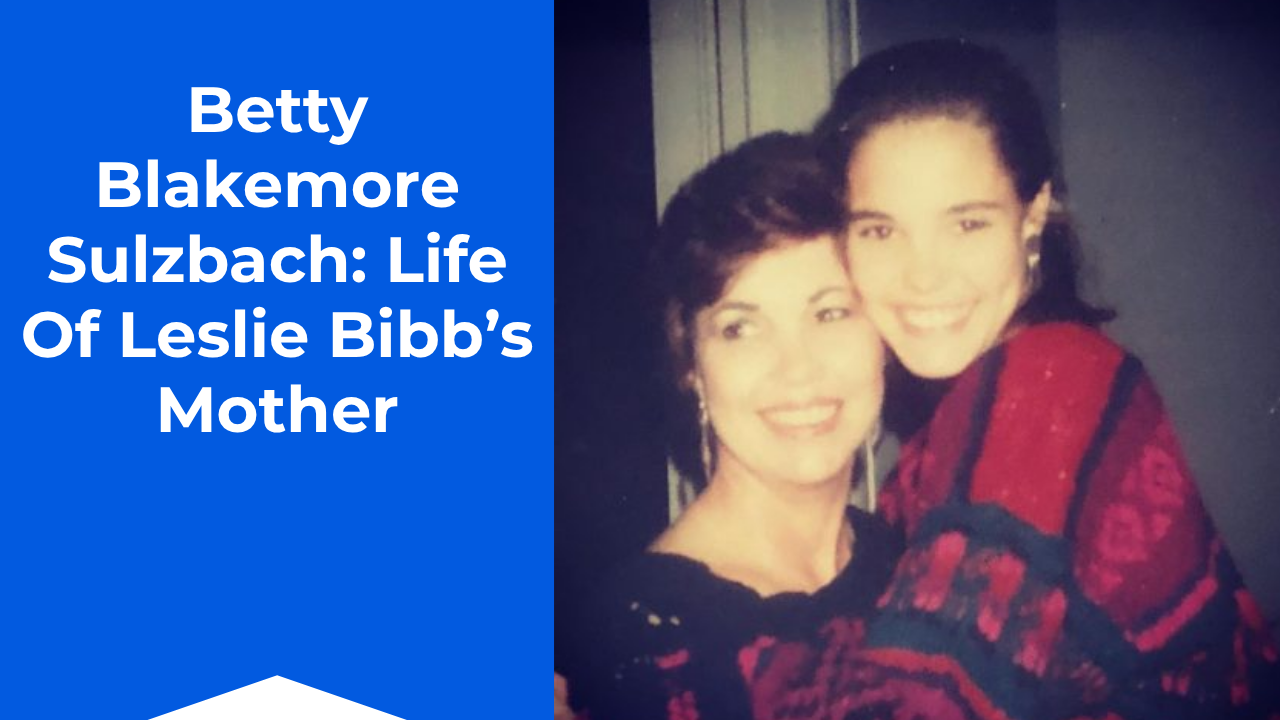
Years after Betty Blakemore Sulzbach died, Leslie Bibb found herself using her mother to understand a character.
While preparing to play Grace Sampson in Jupiter’s Legacy, Bibb thought about watching Betty change as she grew older. She also remembered the quality that had defined her mother for much of her life. Betty, she said, was like a “cat on a hot tin roof” because she always found a way to land on her feet.
That description fits the parts of Betty’s life that are publicly documented. Leslie’s father died when she was only three, leaving her mother to raise four daughters. Betty did more than keep the family going. She worked in politics, managed campaigns, became a senior consumer-affairs official in Virginia, and raised a daughter who originally imagined following her into public service rather than Hollywood.
Betty never became famous herself. Still, her determination, political work, values, and willingness to let Leslie take an unexpected chance became part of the story behind the actress Leslie eventually became.
Betty Raised Four Girls After Losing Her Husband
One fact appears again and again when Leslie talks about childhood: her father died when she was three.
Betty was left raising Leslie and her three older sisters.
Leslie has rarely presented that part of her childhood sentimentally. Instead, she talks about what she watched her mother do afterward.
Betty simply had to make life work.
In one reflection on her upbringing, Leslie connected some of her own determination to watching her mother handle those years. Raising four children alone meant there was little room to stop when something became difficult.
That example stayed with her.
Decades later, Leslie would still reach for her mother when trying to describe a woman capable of finding a way through trouble.
Their Life in Virginia Was Far From Hollywood
Leslie spent part of her childhood in Lovingston, Virginia, a small community where entertainment was not an obvious career path.
She has described the area as so rural that buying a new pair of sneakers could mean driving roughly 35 miles to Charlottesville. Family vacations were modest. New York, Europe, modeling agencies, and movie sets did not feel like part of her world.
Betty was building a very different example at home.
She worked around government and politics.
Leslie later said that her mother ran political campaigns, and that watching her helped shape Leslie’s first idea of adulthood. As a teenager, Leslie expected to attend the University of Virginia, study law, and possibly move into politics herself.
Acting was not the childhood plan.
Following Betty was much closer to it.
Betty Blakemore Sulzbach Built Her Own Career in Public Service
Betty’s professional life was more substantial than many celebrity-family biographies suggest.
Virginia government records identify Betty Blakemore Sulzbach as director of the Division of Consumer Affairs within the Virginia Department of Agriculture and Consumer Services during the 1990s. A 1995 state document specifically addressed her as the division’s director.
Another Virginia legislative report records Sulzbach appearing before a state subcommittee in 1994 in that same position. She spoke as part of discussions surrounding the Virginia Consumer Protection Act.
Her work was not confined to administrative paperwork.
In 1990, the Roanoke Times quoted Betty Blakemore while reporting on telephone scams and deceptive 900-number operations. She was then identified as director of the state consumer-affairs agency and warned about schemes targeting Virginia residents.
A Washington Post report from 1989 also quoted Betty W. Blakemore, then director in Virginia’s Department of Agriculture and Consumer Services, discussing deceptive sweepstakes promotions.
Betty had a public career of her own long before Leslie became a familiar face on television.
Leslie Once Thought She Might Follow Her Mother Into Politics
For Leslie, her mother’s job made politics seem realistic in a way acting did not.
She even worked as a page in the Virginia General Assembly while young.
Her plan made sense to her: get into the University of Virginia, become a lawyer, and then perhaps enter politics. Betty’s campaign work offered a model for that life.
Years later, Leslie laughed at how different things turned out.
She became a model, then an actress, appearing in projects including Popular, Talladega Nights, Iron Man, Palm Royale, and The White Lotus.
But the political interest did not come from nowhere.
Before Hollywood gave Leslie another direction, Betty had shown her daughter one possible way to make a life in public.
Betty Also Taught Leslie How She Wanted to Treat People
Not everything Betty passed down came through her career.
Leslie once told The Advocate about following her mother to tennis matches when she was around eight or nine years old.
Two gay men sometimes played with Betty and her friends. Leslie liked them because they made her laugh and made her feel good about herself.
Only years later did she tell Betty that she had realized the men were gay.
Betty’s response was essentially that she had known all along. Leslie remembered that her mother did not care about someone’s sexuality as long as the person was good.
For a child growing up in a small Southern community, Leslie felt that attitude mattered.
She later credited Betty with giving her those values at an early age.
It is one of the more revealing memories Leslie has shared about her mother because it shows Betty through behavior rather than a generic description of her as “supportive.”
She had her own standard for people.
Character mattered more than convention.
One Modeling Contest Changed the Plan Betty Had Helped Inspire
The strange turn in Leslie’s life arrived when she was 16.
In 1990, The Oprah Winfrey Show and the Elite modeling agency held a model search.
Betty became part of the story.
Accounts of Leslie’s early career say her mother submitted photographs of her daughter to the competition. Leslie ultimately won, beating thousands of entrants and suddenly gaining access to a world that had seemed impossibly distant from rural Virginia.
The change was enormous.
Leslie began traveling. She worked as a model and experienced places far beyond the family vacations she had known growing up.
She has said the contest “changed the trajectory” of her life.
Betty had raised a daughter who thought she might enter politics.
Then she helped send photographs into a contest that opened an entirely different door.
Betty Did Not Raise Leslie to Expect a Show Business Life
What makes Leslie’s career shift more interesting is how little the family had been oriented toward entertainment.
Leslie has said Betty was not the sort of mother who regularly took her daughter to New York for theater weekends.
That kind of trip was expensive.
It simply was not their reality.
When Leslie finally reached New York through modeling, the city felt like another world.
She eventually discovered that she belonged there.
Modeling led toward acting, and acting slowly became the career that politics had once seemed likely to be.
The contrast is important.
Betty did not appear to have raised Leslie with a plan for celebrity.
She raised her to imagine that she could build a serious life.
Leslie chose a different version of it.
Mother and Daughter Eventually Moved to Richmond Together
As Leslie’s older sisters moved on to college, the family home changed again.
Leslie has recalled moving with Betty from Lovingston to Richmond, Virginia. There, she attended Saint Gertrude High School, an all-girls Catholic school.
Richmond gave Leslie access to a larger world than the country environment she had known earlier.
Still, her future remained unsettled.
The teenage girl living with Betty could not have known that modeling would eventually give way to television and film.
What she did know was work.
That had been visible at home for years.
Betty had raised four daughters while building a career that brought her into campaigns, government offices, consumer issues, and state policy.
Betty’s Work Was About Protecting Consumers
The surviving public record gives an unusually clear picture of what Betty actually did professionally.
Her job involved practical problems affecting ordinary people.
In news reports, she discussed misleading sweepstakes, questionable telephone promotions, and consumer scams.
She also remained involved in consumer advocacy after her state-government work.
In 1997, The Washington Post identified Betty Blakemore Sulzbach as a director of the Virginia Citizens Consumer Council while reporting on privacy concerns surrounding Social Security numbers on driver’s licenses.
That detail makes Leslie’s early attraction to politics easier to understand.
Betty was not simply interested in elections from a distance.
She worked in a field where government decisions affected people’s money, privacy, and daily lives.
Leslie grew up watching that work happen.
Leslie Remembered Her Mother as Someone Who Always Found a Way
The clearest description of Betty may have come years after Leslie left home.
While discussing Jupiter’s Legacy in 2021, Leslie spoke about losing her mother unexpectedly a few years earlier.
She remembered Betty changing as she aged. Leslie saw more fear in her, something she found difficult and confusing.
But when she thought about the younger version of her mother, another image appeared.
Betty was the woman who landed on her feet.
That description connects neatly with everything Leslie had already said about childhood.
Her husband died.
Four daughters still needed raising.
Betty worked.
She ran campaigns.
She moved into public service.
She dealt with political and consumer issues.
Life kept moving, so she did too.
That was the mother Leslie remembered when looking for the strength inside a fictional character.
Losing Betty Changed the Way Leslie Looked at Her Roles
Betty’s death did not remove her influence from Leslie’s work.
In some ways, it made that influence more visible.
Leslie said she received Jupiter’s Legacy not long after her mother died. The story’s interest in people aging from optimistic young adults into older, more complicated versions of themselves immediately made her think about Betty.
Later, another project brought up the absence differently.
While discussing the 2023 film About My Father, Leslie explained that her mother had already died. Playing a woman surrounded by both a mother and a father offered something she had not really experienced herself.
She described the role as a chance for a kind of healing and catharsis.
The movie also made her think about how long children continue to seek their parents’ approval.
“My mother’s not even with me anymore,” Leslie told Salon, explaining that she could still find herself wondering whether Betty would approve of something she had done.
Betty was gone.
The conversation with her continued.
Motherhood Still Brings Betty Back to Leslie
In 2025, Leslie traveled through South Africa and spent time watching animals with their young.
The experience affected her more deeply than she expected.
She saw lionesses with cubs, elephants caring for their young, and other examples of maternal behavior. Those scenes brought her thoughts back to being raised by a single mother after her father’s death.
It was another reminder of how Betty remained present in Leslie’s understanding of family.
The public knows Leslie through characters.
Her memories of her mother are much smaller and more personal: watching her work, learning her values, remembering how she survived difficult years, and still wondering what she might think.
Those details say more about Betty than a list of dates ever could.
What Was Betty Blakemore Sulzbach Really Like?
No public profile can fully answer that question.
Betty did not live as a celebrity, and detailed interviews with her about motherhood or Leslie’s career are not widely available.
But Leslie has left several pieces.
Betty was politically engaged.
She worked.
She could be practical.
She was open-minded in ways Leslie noticed even as a child.
She raised four daughters after losing her husband.
And Leslie remembered her as a woman who knew how to recover when life became difficult.
Betty also changed as she aged. Leslie did not hide that part of the story. She remembered seeing fear and regret enter her mother’s life, something that troubled her after years of seeing Betty as nearly indestructible.
That makes the memory more human.
The woman who always landed on her feet was still capable of becoming afraid.
Why Betty Blakemore Sulzbach Matters in Leslie Bibb’s Story
It would be easy to describe Betty only as Leslie Bibb’s mother.
Her own record deserves more than that.
Betty worked in Virginia politics and consumer affairs. State records place her in a leadership role at the Division of Consumer Affairs, and contemporary news reports show her publicly addressing scams and consumer protections.
At home, she raised four daughters after losing her husband.
One of those daughters originally imagined entering politics because that was the world she saw her mother working in.
Then came a modeling contest.
Betty helped open that door too.
Leslie’s path eventually moved from Virginia to New York, modeling, television, film, and major Hollywood productions.
Yet when she later needed an example of persistence, she did not reach for another actor.
She thought of her mother.
Final Thoughts
Betty Blakemore Sulzbach never had Leslie Bibb’s public fame, but she had a life that stood on its own.
She raised four daughters after becoming a widow. She managed political campaigns. She became a consumer-affairs leader in Virginia and spent years working on issues that affected ordinary people.
She also shaped the daughter who would eventually leave that world for Hollywood.
Leslie learned from Betty that life could change without warning and that waiting for ideal circumstances was not always an option.
Betty had to make things work.
Years after losing her, Leslie still found herself asking what her mother might think of her choices.
Perhaps that is the clearest measure of Betty’s place in her daughter’s life.
She was no longer there to answer.
Leslie was still asking.
Who was Betty Blakemore Sulzbach?
Betty Blakemore Sulzbach was Leslie Bibb’s mother and a Virginia public-service professional who worked in politics and consumer affairs.
What did Leslie Bibb’s mother do for a living?
Betty ran political campaigns and served as director of Virginia’s Division of Consumer Affairs.
Did Betty Blakemore Sulzbach raise Leslie Bibb alone?
Betty raised Leslie and her three older sisters after Leslie’s father died when Leslie was three years old.
Did Betty help Leslie Bibb become a model?
Betty submitted photographs of teenage Leslie for the 1990 modeling search connected with The Oprah Winfrey Show and Elite, a contest Leslie went on to win.
Is Leslie Bibb’s mother still alive?
No. Leslie said in a 2021 interview that her mother had died unexpectedly a few years earlier, though a reliable exact death date is not widely documented.
Meta Description
Meet Betty Blakemore Sulzbach, Leslie Bibb’s mother, and learn how she raised four daughters, built a career in Virginia politics, and shaped Leslie’s life long before Hollywood.

Susan Cross Toby Stephens’ Sister, Family, and Public Record

William Richards: The Father Michael Richards Grew Up Believing He Had

Betty Blakemore Sulzbach: Life Of Leslie Bibb’s Mother

Cathy Howe: Gordie Howe’s Daughter, Family, and Public Life

Lois Retton: The Story of Mary Lou Retton’s Mother

Kay Lurene Surratt: What We Know About Elizabeth Lail’s Mother
-
 Blog1 month ago
Cathy Howe: Gordie Howe’s Daughter, Family, and Public Life
-
 Blog1 month ago
Lois Retton: The Story of Mary Lou Retton’s Mother
-
 Blog1 month ago
Kay Lurene Surratt: What We Know About Elizabeth Lail’s Mother
-
 Blog1 month ago
Andrew Galloway Sr.: All About Drew McIntyre’s Father
-
 Blog1 month ago
Donald Furcillo Jack Nicholson’s Reported Father
-

 Blog1 month ago
Who Is Darrell Bishop? The Life of Jamie Foxx’s Biological Father
-

 Blog1 month ago
Barbara Mallet Reid: Mother of British Actor Steve McFadden
-
 Blog1 month ago
Paul Piper: The Story Of Billie Piper’s Father